


Logged out of WhatsApp Business in the middle of the night, followed by a wave of spam messages and verification codes arriving on several of your numbers that you never requested? Then there is a good chance someone is trying to take over your number. The good news: one setting prevents it, two-step verification (a PIN). This guide explains what is happening and how to set the PIN, both on your phone and in WhatsApp Manager on business.facebook.com. New to all this? Read our explanation of WhatsApp Business for staff first.
What is probably going on
Those symptoms belong together and point to a takeover attempt:
- Verification codes you did not ask for. Every time someone tries to register your number on WhatsApp or another service, an SMS code is sent to you. A stream of those codes means someone is trying repeatedly.
- Suddenly logged out. WhatsApp ties a number to one device. If an attacker manages to register your number on another device, you get logged out on your own phone.
- The Boomer connection drops. If you run Coexistence, the connection to Boomer hangs off that same WhatsApp Business app. Log the app out and the connection goes with it.
- Spam afterwards. Once a number has been hijacked, or repeatedly attempted, it often ends up on spam lists, hence the sudden messages from abroad.
The core of it: an SMS verification code on its own is not enough protection. Anyone who can intercept that code, or talk you into sharing it, is in. Two-step verification puts a second lock on that door.
The fix: two-step verification (a PIN)
Two-step verification is a six-digit PIN of your own choosing that is needed alongside the SMS code to register your number. Without that PIN nobody gets in, not even with the SMS code. You only need it when registering your number on a device or platform, not every time you open the app. WhatsApp asks for it occasionally as a reminder, so you do not forget it.
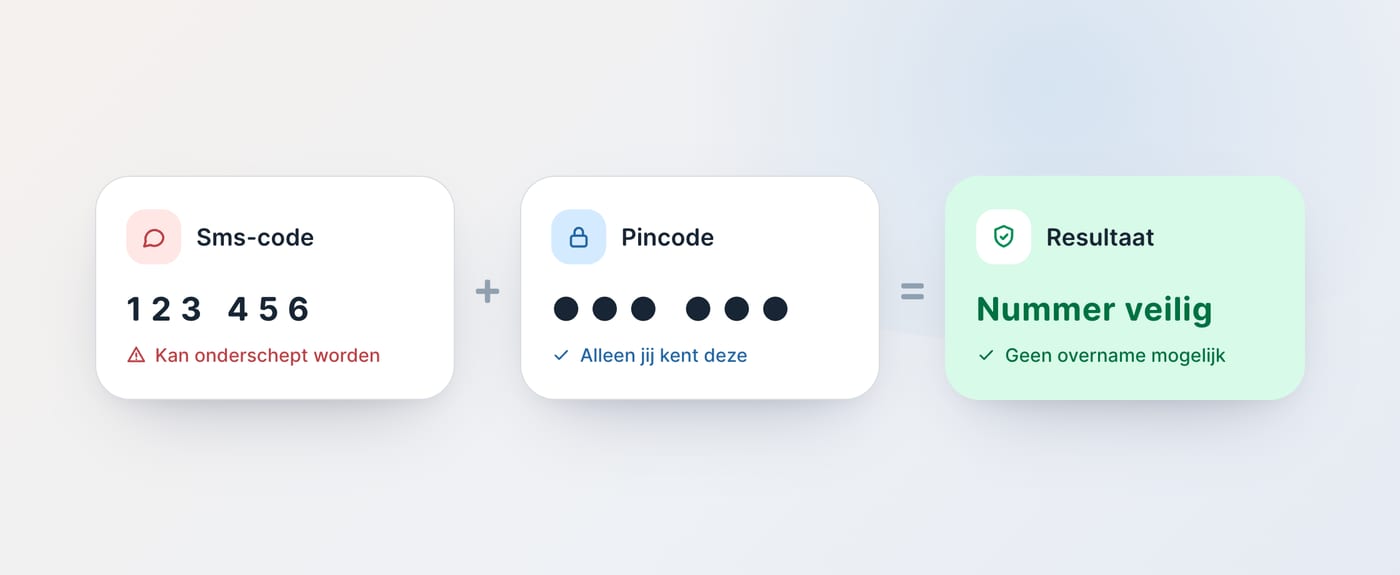
For a business number you set that PIN in two places, depending on your setup. If you use the WhatsApp Business app on a phone (as with Coexistence), do both. WhatsApp also explains how registration and two-step verification protect your account together.
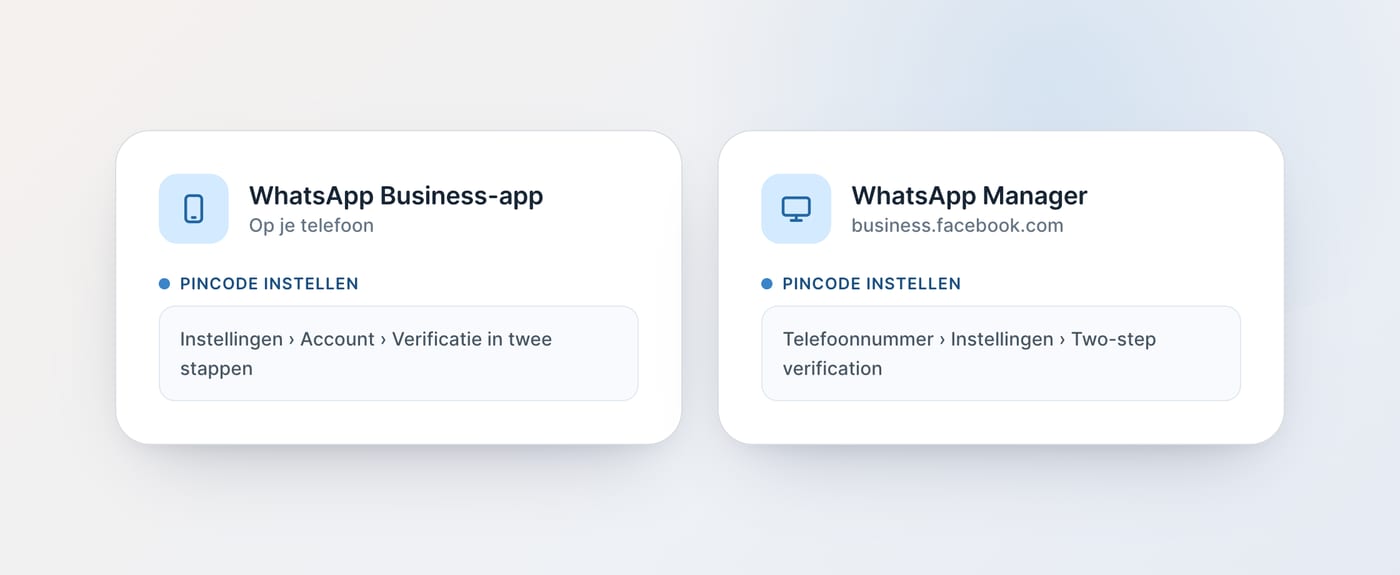
Setting the PIN on your phone (WhatsApp Business app)
This is the layer that stops someone registering your number on another device and logging you out.
- Open the WhatsApp Business app and tap the three dots (⋮) at the top right → Settings.
- Go to Account.
- Tap Two-step verification.
- Tap Turn on.
- Think of a six-digit PIN, enter it and confirm by typing it again.
- Add an email address. This matters: it lets you reset the PIN if you forget it.
Do not pick an obvious code (no 123456, no year of birth) and keep it somewhere safe, for example in your password manager.
The official, always current steps are in the WhatsApp help centre, for iPhone and for Android.
Setting the PIN on business.facebook.com (WhatsApp Manager)
If you use the official WhatsApp Business Platform (the API, for example through Boomer), you manage the PIN for your number in WhatsApp Manager:
- Go to business.facebook.com and log in.
- Select your Business Portfolio.
- Open WhatsApp Accounts and click your WhatsApp Business Account (WABA).
- Click Settings and open WhatsApp Manager.
- Find your phone number and click Settings next to it.
- Go to the Two-step verification tab.
- Click Change PIN and enter your new six-digit PIN.
Meta switches this layer on by default when a number is registered on the platform, and it cannot be turned off. So make sure you know the PIN and store it safely; you will need it if you ever have to register the number again.
What to do if it is happening right now
Seeing a takeover attempt at this moment? Move fast:
- Never share a verification code. Not with a "support agent", not through a link, not over the phone. A code you did not request yourself is a code you ignore.
- Register your number again straight away in the WhatsApp Business app if you have been logged out, while you still have access to the SMS.
- Switch on two-step verification immediately with a PIN and add a recovery email address (see the steps above).
- Check who has access to your Business account and remove users you do not recognise.
- Using Boomer? Get in touch and we will restore the Coexistence connection and go through the security settings with you.
Still not getting your number back, or still blocked? Read WhatsApp number blocked: here is why, and how to prevent it.
Never lose your pool
A number that gets taken over or blocked is exactly the scenario you do not want with a flex pool: everyone is unreachable at once. A PIN is your first line of defence. The second is not depending on one phone in someone's pocket.
On the official WhatsApp Business Platform your number runs on a verified business connection instead of a single app session. And through Coexistence you stay reachable on the same number through Boomer, even if something goes wrong with the app. Want your recruiting on a foundation that stays standing? Read how we prevent a ban or book a demo.